GAMES 6320 · Assignment 07
A Maya exporter, depth buffering, vertex colors
A Maya mesh exporter plug-in, meshes made in Maya, depth buffering, and vertex colors.
Course: GAMES 6320-001 — Game Engineering II (Fall 2026)
Download (one click, ZIP): MyGame_Assignment07_Release_x64.zip
The ZIP contains a Direct3D Release build (
x64). Unzip it and runMyGame.exe.Controls:
Key What it does Arrow keys Move the sphere left / right / up / down Space(hold)The sphere becomes a cone A/DMove the camera left / right W/SMove the camera forward / back EscExit
1. What the assignment was about
Last week I designed a human-readable mesh file format and typed a few meshes into it by hand.
That works for a square, but nobody is going to type the 1,488 vertices of a sphere. Real game
content is made in a modelling program, so this assignment connects my engine to one: I wrote a
Maya plug-in that adds my format to Maya’s Export menu. An artist builds a model in Maya,
exports it, and the existing asset pipeline from Assignment 06 takes it from there.
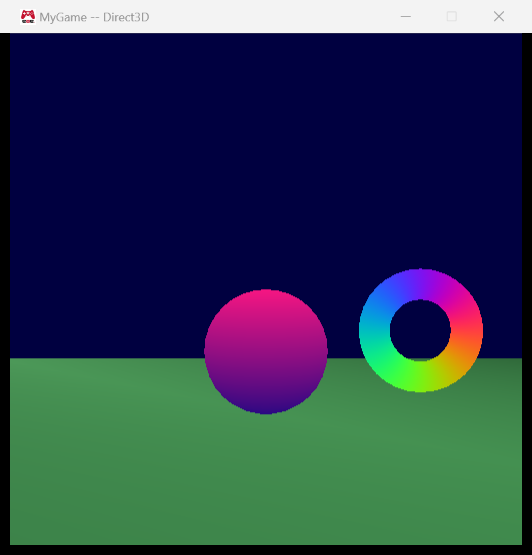
The scene now has three meshes made in Maya — a floor plane, a sphere and a torus — plus a cone
that the sphere turns into while Space is held. Because they are real 3D shapes, depth
buffering matters now: the effects enable depth testing and depth writing, so whatever is in
front is drawn in front no matter which object is drawn first.
I also did the optional challenge and added vertex colors, because otherwise four white
shapes on a white floor would be hard to tell apart.
2. Screenshots
All four meshes come from Maya. The floor, the torus and the sphere:
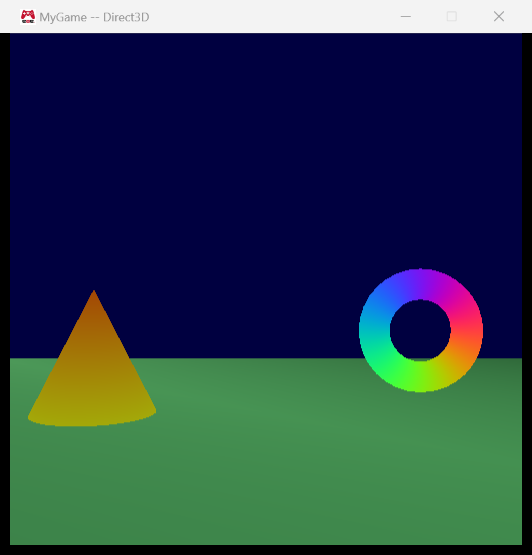
Holding Space (and moving left) turns the sphere into the cone. The cone uses the animated
color effect, multiplied by its yellow-to-orange vertex colors:
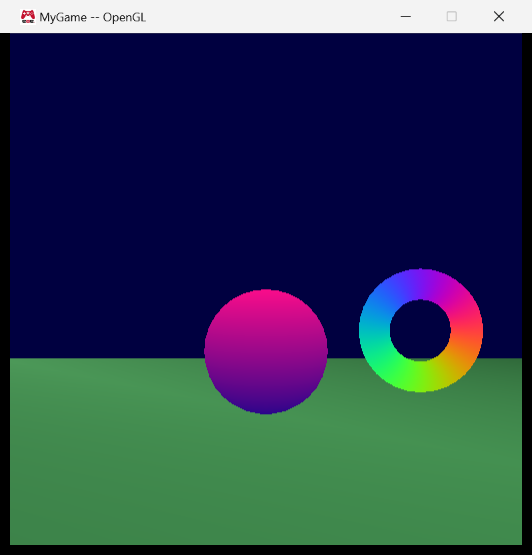
The OpenGL build renders the same scene:
3. Setting up the MayaMeshExporter project
The project lives in Tools/MayaMeshExporter, both on disk and in the solution’s Tools folder.
It finds Maya through environment variables rather than hard-coded paths, so that it builds on
any machine where Maya is installed:
MAYA_LOCATION— where Maya is installedDEVKIT_LOCATION— where the Maya SDK’sincludeandlibfolders areMAYA_PLUG_IN_PATH— where the built plug-in is copied so that Maya finds it
The plug-in is built as eae6320_OWNBY_YangFeiyang_mesh.mll (and ..._DEBUG.mll) so that it can’t
collide with another student’s plug-in in the same plug-in folder.
Maya is a 64-bit program and can only load 64-bit plug-ins, so the project only has an x64
platform, and the solution builds the x64 plug-in for both solution platforms. Even when I
build the 32-bit OpenGL game, the plug-in that gets built is the one Maya can actually load.
What references did I have to add?
None. The plug-in doesn’t link with any of my engine’s libraries: it only uses Maya’s libraries
(Foundation.lib and OpenMaya.lib, which Windows/ExternalLibraries.win.h links with#pragma comment) and the C++ standard library. The one engine file it includes,Engine/Windows/Includes.h, is a header that makes sure windows.h is included consistently,
and it has nothing to link against.
That is also a nice property: the exporter is about the source format, and the source format
is plain text. The exporter doesn’t need to know anything about how the engine stores meshes.
What depends on MayaMeshExporter?
Nothing. No project needs the plug-in in order to build: the game loads .mesh files, andBuildMyGameAssets builds .mesh files with MeshBuilder; neither cares how a .mesh file was
made. The plug-in is used by a person, inside Maya, before the build. Because it is part of the
solution it is still rebuilt (and copied to MAYA_PLUG_IN_PATH) whenever I build everything.
4. What the exporter writes
This is the beginning of floor.mesh as exported from Maya:
|
It is the same format that I designed last week, unchanged. Maya is right-handed, which is the
convention my format already uses, so the exporter writes positions and triangle indices exactly
as Maya provides them and the engine still does the one Direct3D conversion when it loads a mesh.
The exporter also writes the comments that I said a tool should add: a summary at the top, and the
index of every vertex. They cost the machine nothing and save a person from counting.
Did I export the unused data?
Yes. Normals, tangents, bitangents and texture coordinates are all in the file, even though the
engine currently only reads position and color.
The reason is that the expensive part of getting this data is the export, not the file size. If I
leave something out and need it later (lighting needs normals, textures need texture
coordinates — both are very likely in a game engine class), every mesh has to be re-exported from
its Maya file, and that only works if the Maya file still exists. Writing everything now means the
source files already contain what a future version of the engine will need.
It costs nothing at run time either: because every vertex is a dictionary, the loader looks up the
keys it understands and never visits the others, and once MeshBuilder writes a binary format the
unused values won’t even make it into the built file. The price is size: the sphere’s source file is
about half a megabyte, which is fine for a source asset.
5. Vertex colors
Colors are an optional color = { r, g, b, a } entry in a vertex, with values from 0 to 1.
- 0 to 1 in the file, 0 to 255 in the engine. The file says what the color is; the engine
decides how to store it. Each channel is stored as auint8_t, and the GPU reads[0, 255]as[0, 1](DXGI_FORMAT_R8G8B8A8_UNORMin Direct3D, a normalizedGL_UNSIGNED_BYTEattribute in
OpenGL). The conversion rounds to the nearest integer instead of truncating, so0.5becomes128and not127. - Alpha is optional and defaults to 1. Red, green and blue are required if a color is given.
- A vertex without a color is white. This is the reason I made vertices dictionaries in
Assignment 06: none of last week’s hand-written mesh files had to change to keep working.
The standard fragment shader now outputs the vertex color, and the animated shader multiplies its
animated color by the vertex color.
6. The vertex limit
Indices are uint16_ts, which can hold 65,536 different values, so a mesh can have at most
65,536 vertices — any vertex beyond that couldn’t be referenced by an index. (The limit is on
vertices, not on triangles: a mesh can have as many triangles as it likes, as long as they share
those vertices.)
To test it I exported a 300 × 300 sphere. Maya counts 89,702 vertices, but after the exporter
splits vertices that need different normals or texture coordinates there are 359,400. The exporter
warns about it in Maya:
Warning: This mesh has 359400 vertices, but the engine can’t load meshes with more than 65536
and the file is still written, because it is valid data that a future engine might load. When I
replaced the sphere’s built file with it, the game refused to load it instead of rendering garbage:
it writes the reason to the log,
The mesh file data/meshes/sphere.mesh has 359400 vertices, but a mesh can’t have more than 65536
shows the “Initialization failed” message, and exits. Without the check the indices would silently
wrap around past 65,535 and triangles would connect to the wrong vertices.
7. Debugging the plug-in
To debug the plug-in I started Maya, attached Visual Studio to maya.exe, and then loaded the debug
version of the plug-in from Maya. Loading a plug-in calls its initializePlugin(), so a breakpoint
there is hit as soon as Maya loads it:
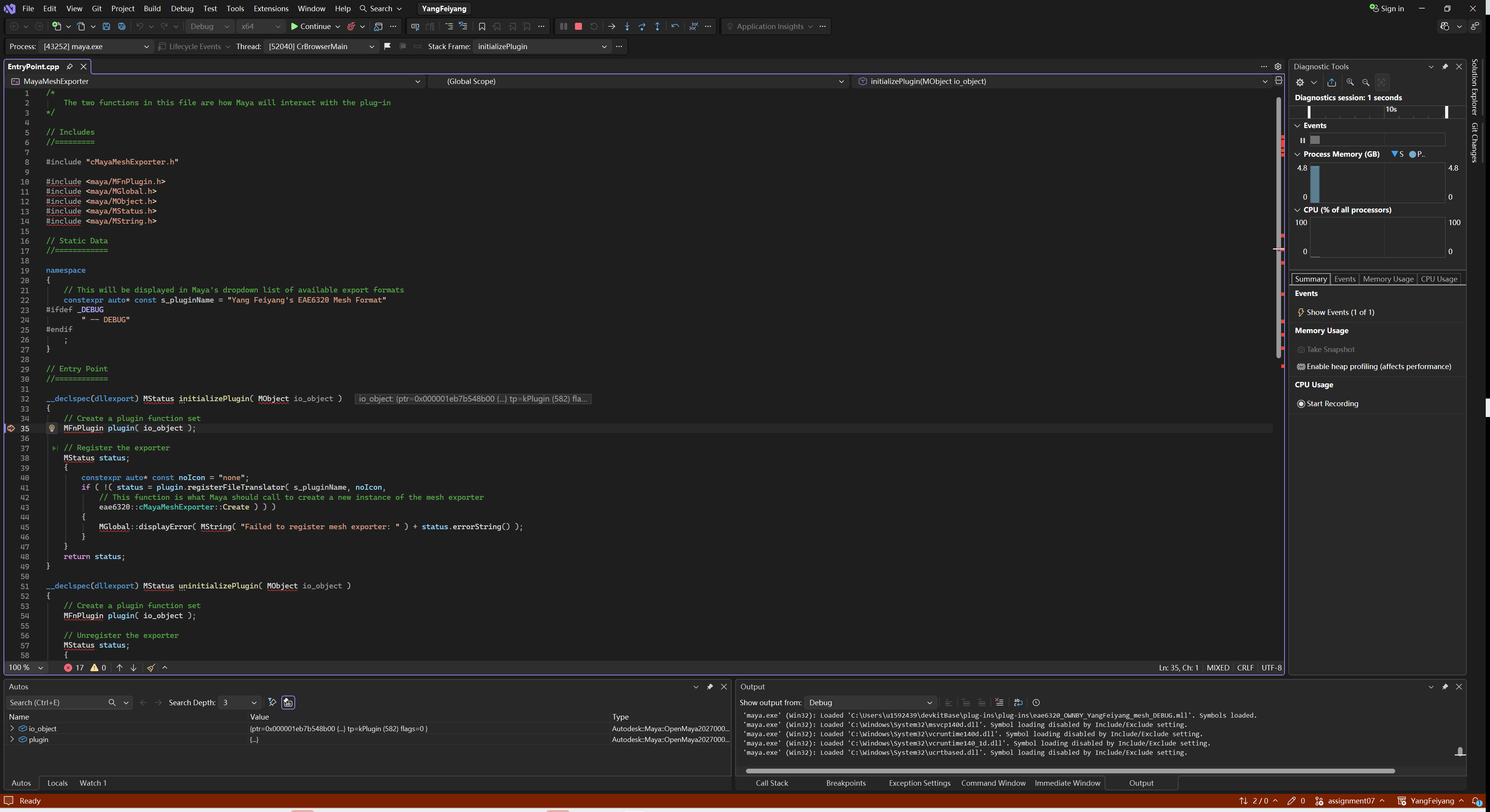
The Output window shows that Visual Studio loaded the symbols ofeae6320_OWNBY_YangFeiyang_mesh_DEBUG.mll, and the Autos window shows the MObject that Maya passes in.
Two things cost me time here:
- Attach with the native debugger. Maya hosts Python, and when Visual Studio picks the debugger
automatically it can attach the Python debugger. Breakpoints in C++ then never turn red and are
never hit. Choosing Native code explicitly in the Attach to Process dialog fixed it. - Maya asks before it loads an untrusted plug-in. Newer versions of Maya show a security
warning for plug-ins outside trusted folders, and the load waits until you click Allow. While the
debugger is attached that looks exactly like “the breakpoint is never hit”, because Maya hasn’t
actually loaded the plug-in yet.
8. Build / test
All four configurations build from scratch without errors or warnings, and both platforms render
the same scene. Building only the game project and running it shows the “Initialization failed”
message and exits; after building only BuildMyGameAssets the game runs.
The Maya files the meshes came from are in MyGame_/Content/Maya, so any mesh can be edited and
exported again.
9. Reflection
The best moment of this assignment was that nothing in the engine had to change to load the Maya
meshes. The format from last week took a sphere with 1,488 vertices exactly the way it took my
hand-typed square. Spending time on the format design paid off.
Vertex colors were the same story: making every vertex a dictionary last week meant colors could
be added without touching a single existing file, and a file without colors still loads.
The thing that surprised me was the vertex count. Maya reports far fewer vertices than the exporter
writes, because a vertex in the engine is a unique combination of position, normal, texture
coordinate and color, and a corner where faces meet with different normals becomes several
vertices. The 65,536 limit is reached much sooner than the vertex count in Maya suggests.
What I would do next: move all of the Lua parsing into MeshBuilder and write a binary file, so the
game stops parsing half a megabyte of text for a sphere every time it starts. And with normals
already exported, simple lighting is the obvious next step.